> ## Documentation Index
> Fetch the complete documentation index at: https://docs.ewake.ai/llms.txt
> Use this file to discover all available pages before exploring further.
# Kubernetes
> Let ewake read pods, events, logs, and deployment state from your cluster during incidents — read-only, with no inbound ports.
**What you'll get:** during an incident, ewake can inspect your cluster — list
pods, read their status and events, pull (and `--previous`) container logs, and
see deployment state — to root-cause failures like `CrashLoopBackOff`,
`OOMKilled`, `ImagePullBackOff`, and unschedulable pods. Access is **read-only**.
***
## How it works
You run a read-only [Kubernetes MCP server](https://github.com/containers/kubernetes-mcp-server)
inside your cluster and expose it over a tunnel of your choice. ewake connects to
that endpoint — with whatever headers you specify — and reads pods, events, logs,
and deployments on demand.
ewake never needs inbound access: the tunnel dials out, so no ports are opened into
your cluster. And it only ever reads — the server runs `--read-only`, bound to a
read-only `view` role.
```mermaid theme={null}
flowchart LR
A["ewake agent"] -->|"request headers (your auth)"| B["your tunnel
(Cloudflare, ngrok, …)"]
B -->|"outbound — no inbound ports"| C["kubernetes-mcp-server
(--read-only)"]
C -->|"read-only RBAC (view)"| D["cluster API server"]
```
***
## Configuration
Deploy the open-source
[`kubernetes-mcp-server`](https://github.com/containers/kubernetes-mcp-server)
however you prefer — Helm, plain manifests, or an existing deployment. Two
things matter:
* **Read-only server** — start it with `--read-only` (optionally
`--toolsets core,config`).
* **Read-only ServiceAccount** — bind it to the built-in `view` ClusterRole,
which excludes Secrets and all write verbs.
Don't grant the server a write-capable role. The `view` ClusterRole is what
keeps ewake read-only and blocks access to Secrets.
Put the server behind an **outbound** tunnel so ewake can reach it without any
inbound ports — for example
[Cloudflare Tunnel](https://developers.cloudflare.com/cloudflare-one/connections/connect-networks/),
[ngrok](https://ngrok.com/), or any equivalent. Protect the public endpoint with
whatever your tunnel offers (a Cloudflare Access service token, an ngrok auth
header, etc.).
Your endpoint URL is the public tunnel hostname plus the MCP path, e.g.
`https://k8s-mcp.yourcompany.com/mcp`.
In your dashboard, go to **Integrations → Infrastructure → Kubernetes →
Connect**, then enter:
| Field | Value |
| ------------------- | ------------------------------------------------------------------------- |
| **MCP Server URL** | Your tunnel URL, e.g. `https://k8s-mcp.yourcompany.com/mcp` |
| **Request headers** | Whatever your endpoint requires (see below). Values are stored encrypted. |
Headers depend on how you protected the endpoint:
* **Cloudflare Access service token** → two headers: `CF-Access-Client-Id` and `CF-Access-Client-Secret`.
* **Bearer / ngrok** → e.g. `Authorization: Bearer `.
* **No auth** → leave it empty.
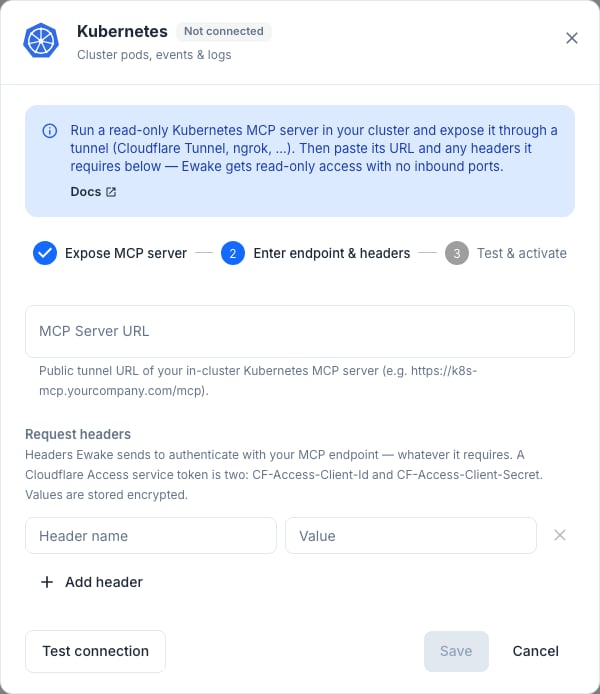 Click **Test connection** — ewake connects through the tunnel and lists the
read-only tools to confirm the URL and headers work. Then click **Save**.
Kubernetes is connected. ewake can now read pods, events, logs, and
deployment state during incidents.
***
## What ewake can and can't do
List and describe pods, deployments, nodes, and events; read current and
previous container logs; inspect non-secret config.
Create, edit, delete, scale, or `exec` into anything. Read Secrets. Open any
inbound port into your cluster.
ewake observes your cluster **on demand** during an investigation — it does not
continuously watch or store cluster state.
Click **Test connection** — ewake connects through the tunnel and lists the
read-only tools to confirm the URL and headers work. Then click **Save**.
Kubernetes is connected. ewake can now read pods, events, logs, and
deployment state during incidents.
***
## What ewake can and can't do
List and describe pods, deployments, nodes, and events; read current and
previous container logs; inspect non-secret config.
Create, edit, delete, scale, or `exec` into anything. Read Secrets. Open any
inbound port into your cluster.
ewake observes your cluster **on demand** during an investigation — it does not
continuously watch or store cluster state.