

What you’ll get: ewake can search your Tempo traces with TraceQL, inspect spans across services, and correlate latency or errors with alerts and deployments, without requiring manual query construction.
Prerequisites
- A Grafana instance (Cloud or self-hosted) with a Tempo data source already configured
- Admin access to create a Service Account in Grafana
Ewake reads Tempo through your Grafana data source proxy, so you connect Grafana once rather than exposing Tempo directly. Ewake resolves the Tempo data source automatically.
Configuration
1
Create a Service Account in Grafana
In Grafana, go to Administration → Service Accounts → click Add service account.Set the role to Viewer, ewake only needs read access.Once the account is created, click Add service account token → copy the token immediately.
Copy the token now, you won’t be able to see it again after closing the modal.
2
Get your Grafana instance URL
Grafana Cloud: Your instance URL follows the format
https://yourorg.grafana.net.Self-hosted: Use the base URL of your Grafana instance (e.g. https://grafana.yourcompany.com).3
Open the Tempo integration in ewake
In your ewake dashboard, go to Integrations → Tempo → click Connect with API key.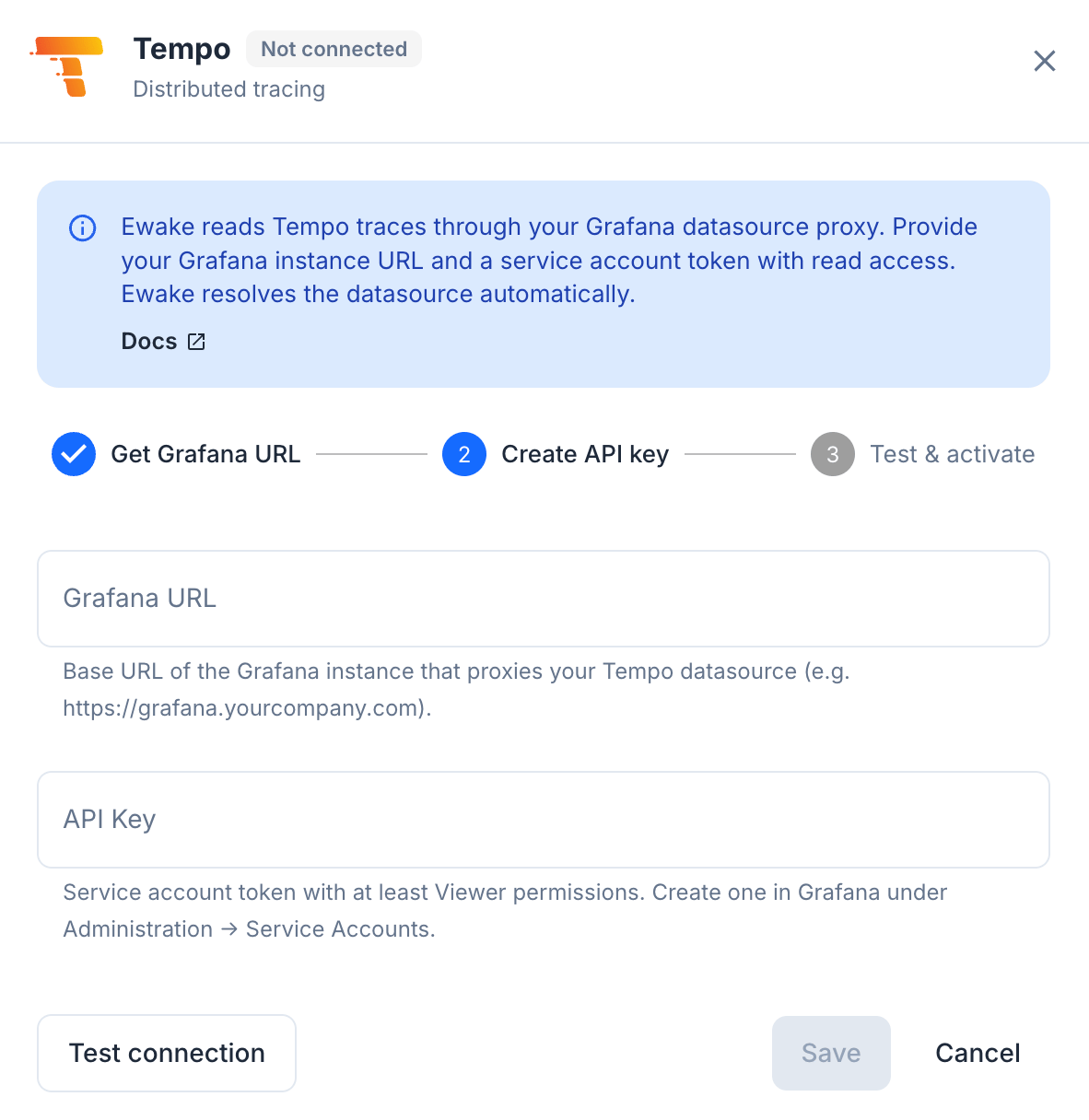
4
Enter your credentials
5
Test and save
Click Test connection to verify the connection, then click Save.
Tempo is connected. Ewake can now search your traces during investigations.
Behind Cloudflare Access or a proxy
If your Grafana instance sits behind an authenticating proxy, add the credentials it expects under Custom headers in the same dialog. For a Cloudflare Access service token that means two headers:
Ewake sends these with every request. Values are stored encrypted, and are not shown again after saving, leaving the fields empty when you edit the connection keeps the headers you already saved.
Without this, a connection test against a proxied endpoint fails with an authentication or redirect error even though the URL and API key are both correct. It’s the most common cause of a test failing on a working instance.
Ewake queries traces in read-only mode using TraceQL. It never writes spans or modifies your Tempo or Grafana configuration.