

What you’ll get: ewake can read your Rootly incidents and match the one tied to the Slack channel it’s working in, surfacing severity, status, and summary directly in the investigation, without anyone pasting context by hand.
Prerequisites
- A Rootly account with permission to create API keys
- An API key with read access to incidents
- Access to your ewake dashboard
Configuration
1
Generate an API key in Rootly
In Rootly, go to Configuration → API Keys → click Generate New API Key.Give it observer (read-only) permissions, ewake only needs read access to incidents.
Copy the key now, you won’t be able to see it again after closing the screen.
2
Open the Rootly integration in ewake
In your ewake dashboard, go to Integrations → Rootly → click Connect with API key.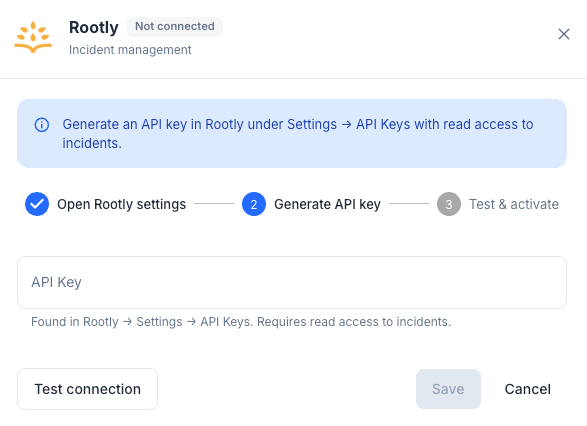
3
Enter your API key
4
Test and save
Click Test connection to verify the connection, then click Save.
Rootly is connected. Ewake can now pull incident context during investigations.
Ewake only requires read-only access to Rootly. It never declares, edits, or resolves incidents.